Create a Channel

Nancy Xiao
Accounts Manager
Channels allow you to securely share projects with specific builders, agencies, sales teams and other partners.
Each recipient receives an email invitation and can access the shared projects by creating a free RealtyCMS account.
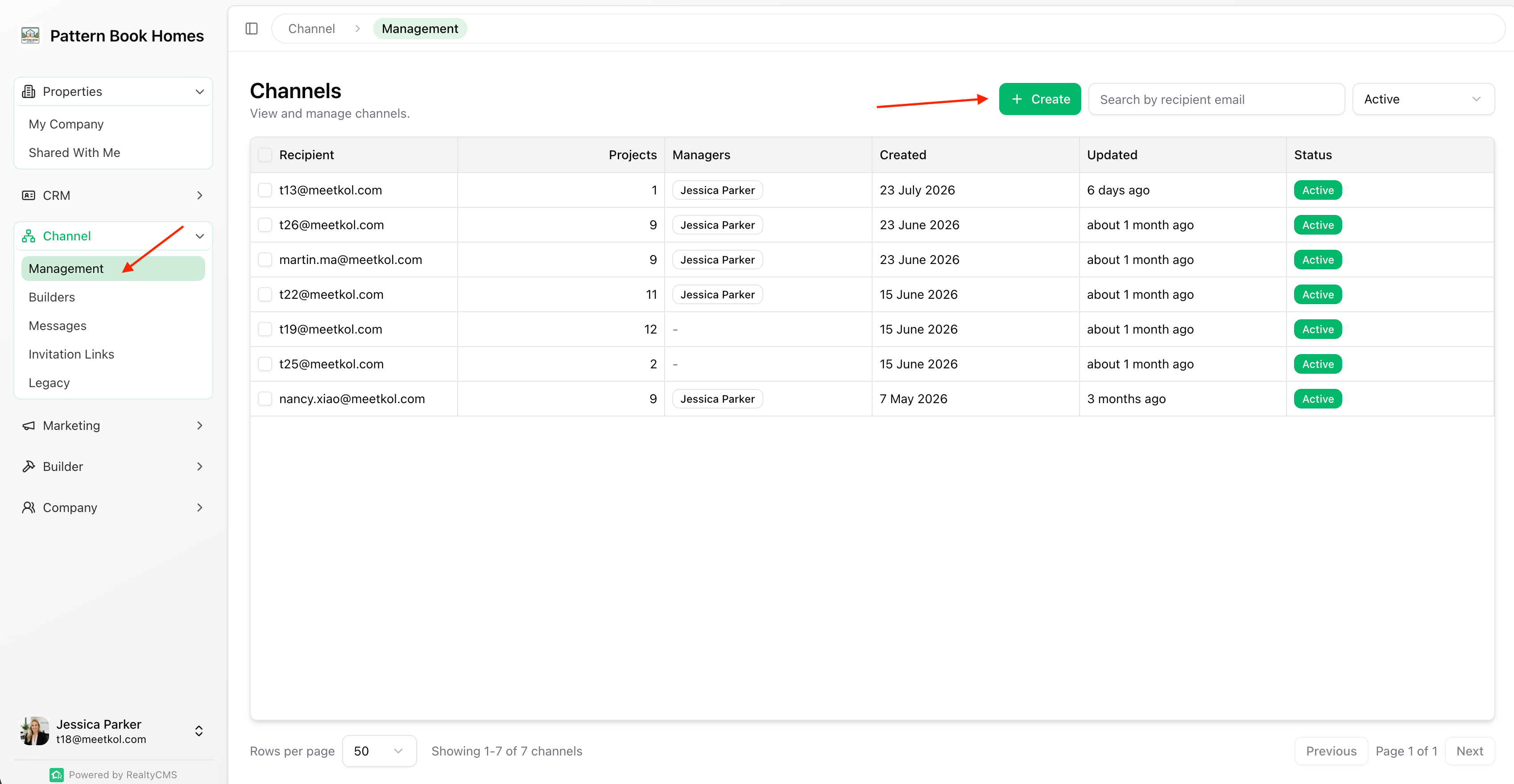
Step 1 – Open Channel Management
From the left-hand menu, go to:
Channel → Management
Click Create to create a new channel.
Step 2 – Add Recipients
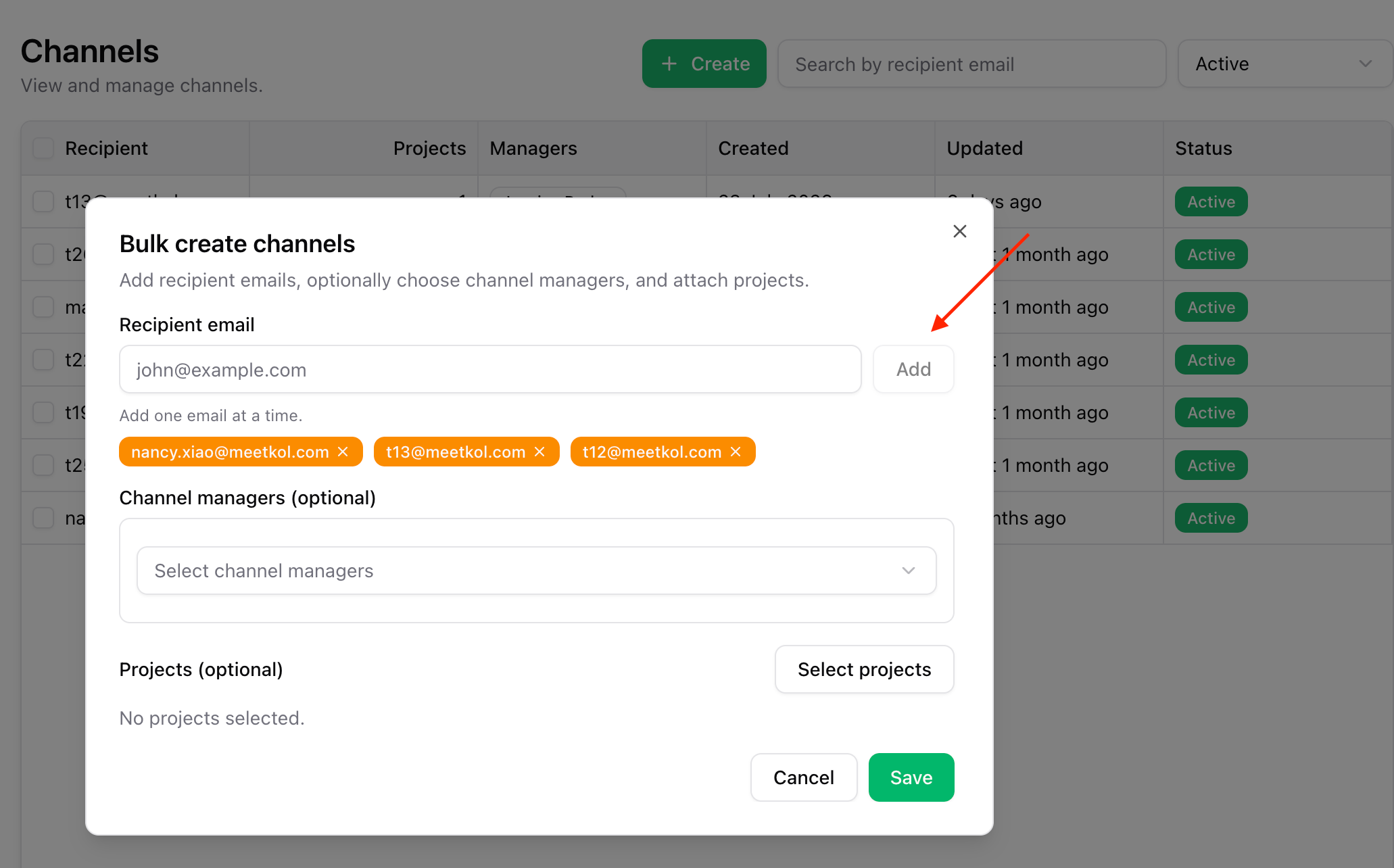
Enter the recipient’s email address, then click Add (You can add multiple recipients, but they must be entered one at a time—after each email, click Add before entering the next one).
Step 3 – Assign Channel Managers (Optional)
If required, select one or more Channel Managers.
The assigned Channel Manager's contact details are visible to recipients, making it easy for them to get in touch with the right person.
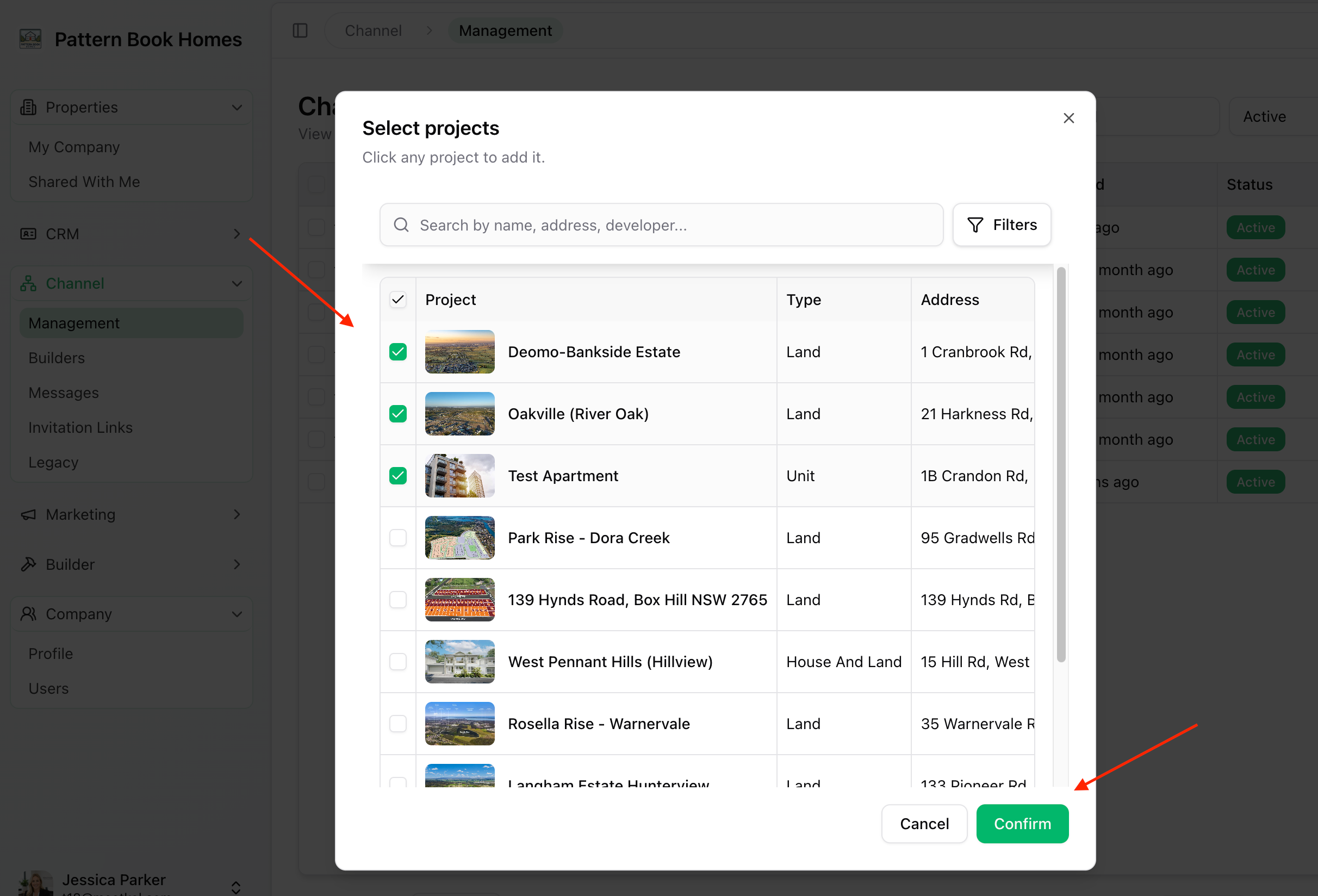
Step 4 – Select Projects
Choose the projects you want to share with the recipient.
Click Confirm when you've finished selecting projects.
Step 5 – Save the Channel
Click Save to create the channel.
The recipient will receive an email invitation. If they don't already have a RealtyCMS account, they can create one for free to access the shared projects.
✅ Done
Your channel is now ready.
You can update shared projects or channel managers at any time from the channel details page.