Set Up Your Company Profile
July 1, 2025
1 min read

Nancy Xiao
Accounts Manager
Your company profile is used throughout RealtyCMS.
Once set up, your branding will automatically appear on:
- House & Land Proposals
- Project Websites
- Landing Pages
- Email Templates
- Invitation Links
- PDF Downloads
You only need to set this up once.
📦 Before You Start
Prepare the following:
- Company logo (PNG recommended)
- Company name
- Business email address
- Contact name
- Mobile number
- Office address (optional)
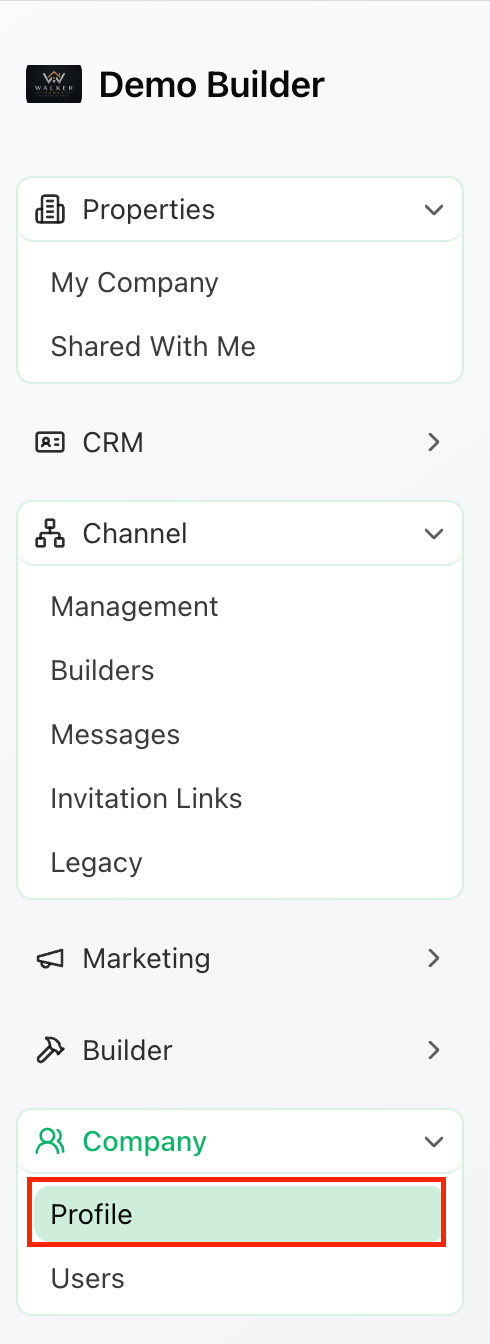
🏢 Step 1 – Open Company Profile
From the left-hand menu, go to:
Company → Profile
✏️ Step 2 – Enter Your Company Details
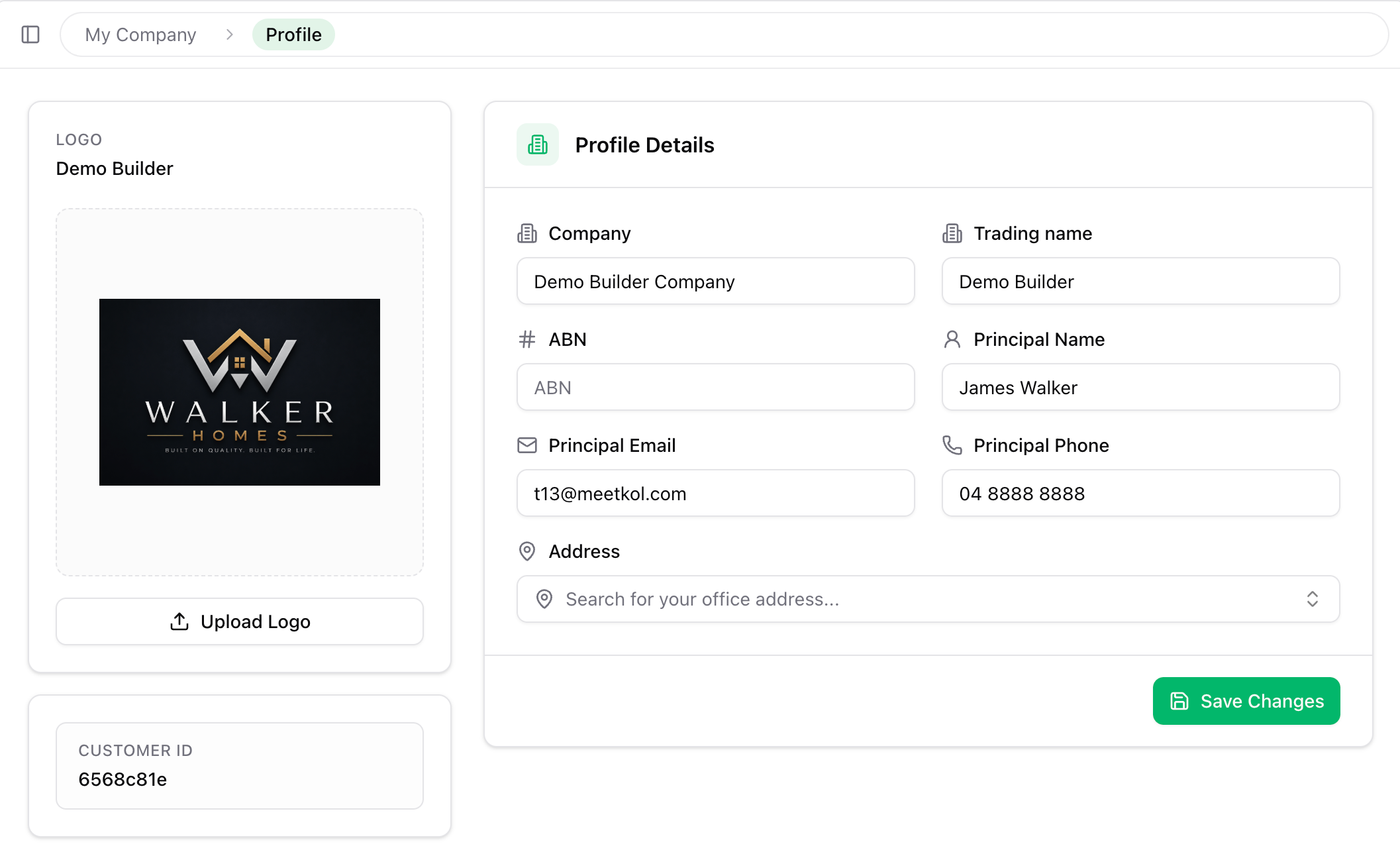
Complete the following information:
- Company Name
- Contact Name
- Email Address
- Mobile Number
- Office Address
🖼 Step 3 – Upload Your Logo
Click Upload Logo and select your company logo.
For the best results:
- PNG format
- High resolution
- Square logo
Your logo will automatically appear on proposals, landing pages, websites and PDF documents.
✅ Save Your Changes
Click Save.
Your company branding will now be applied automatically across RealtyCMS. Future proposals, websites and PDFs will use your latest company profile automatically.