Login and Account Setup Instructions
July 29, 2026
2 min read

Nancy Xiao
Accounts Manager
Please select the appropriate option based on your situation.
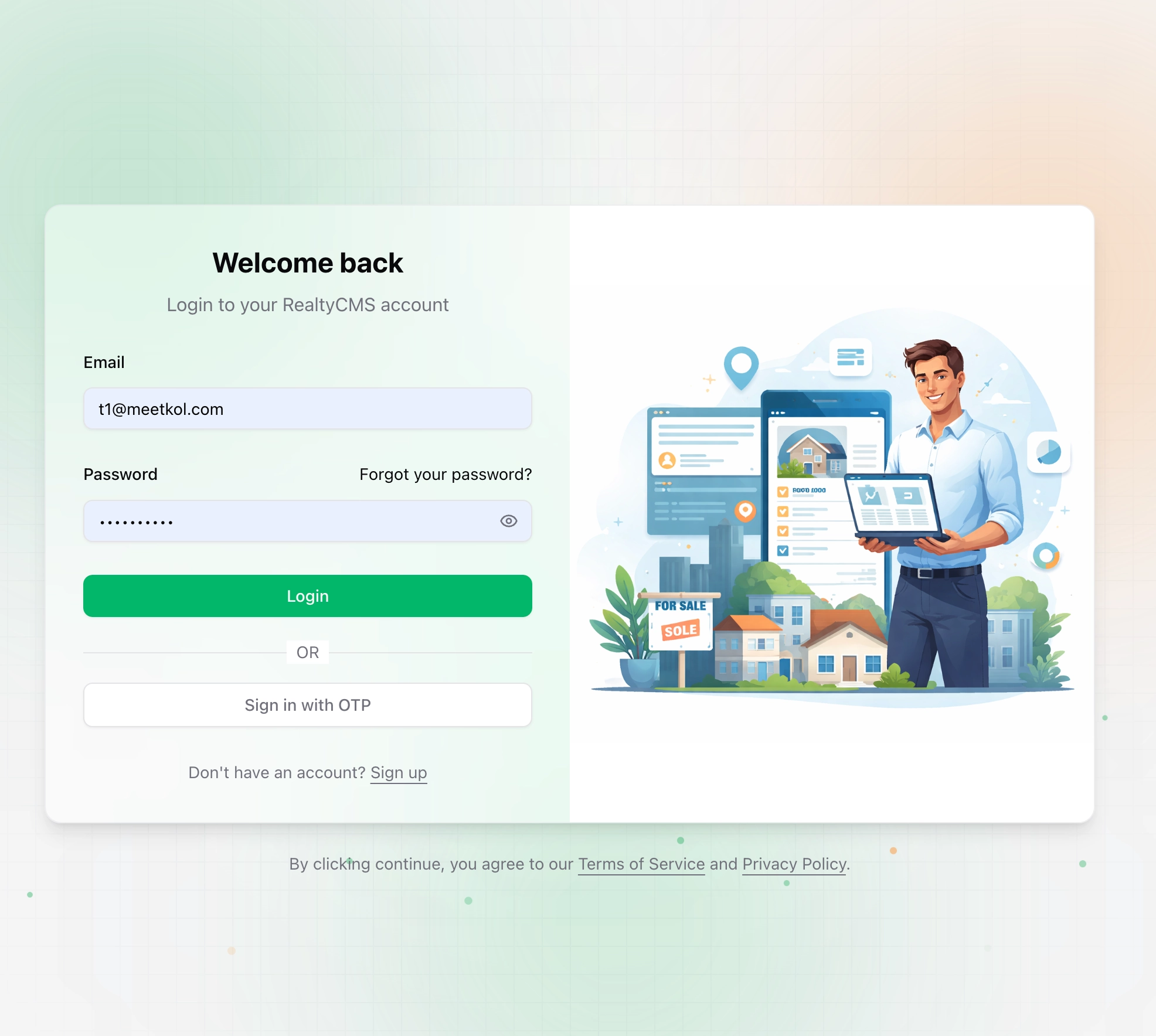
1. If you already have an account, log in directly
- Go to the login page: https://portal.realtycms.com.au/auth/login
- Enter your registered email address and password
- Click “Login” to access the system
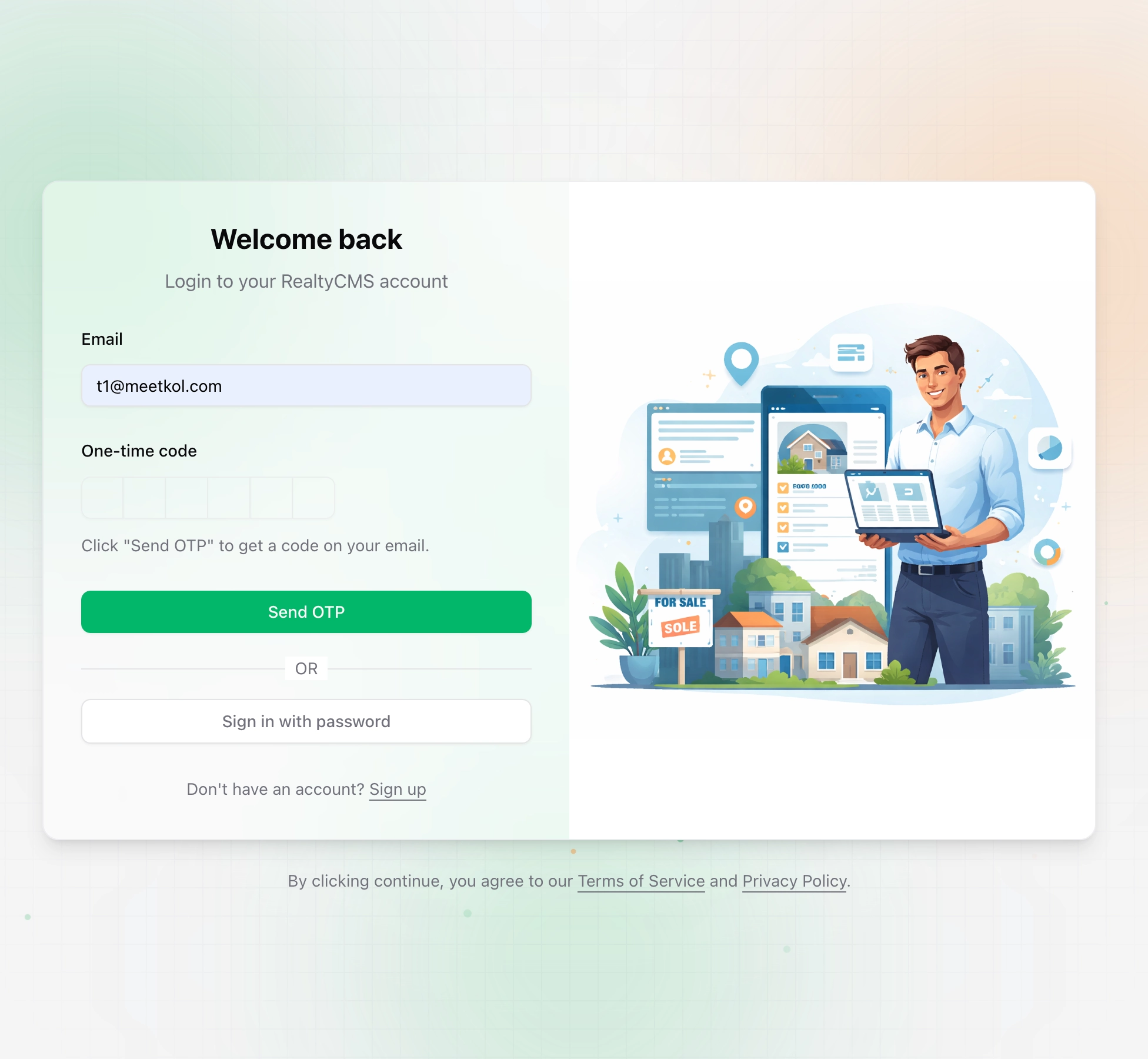
2. If you’ve forgotten your password, log in using the email verification code
If you’ve forgotten your password, you can use “Sign in with OTP” (email verification code):
- Click " Sign in with OTP "
- Enter your registered email address
- Click "Send OTP"
- Open your email and find the 6-digit verification code
- Return to the login page and enter the verification code in the “One-time code” field
- Login complete
3. First-time users: Register a new account
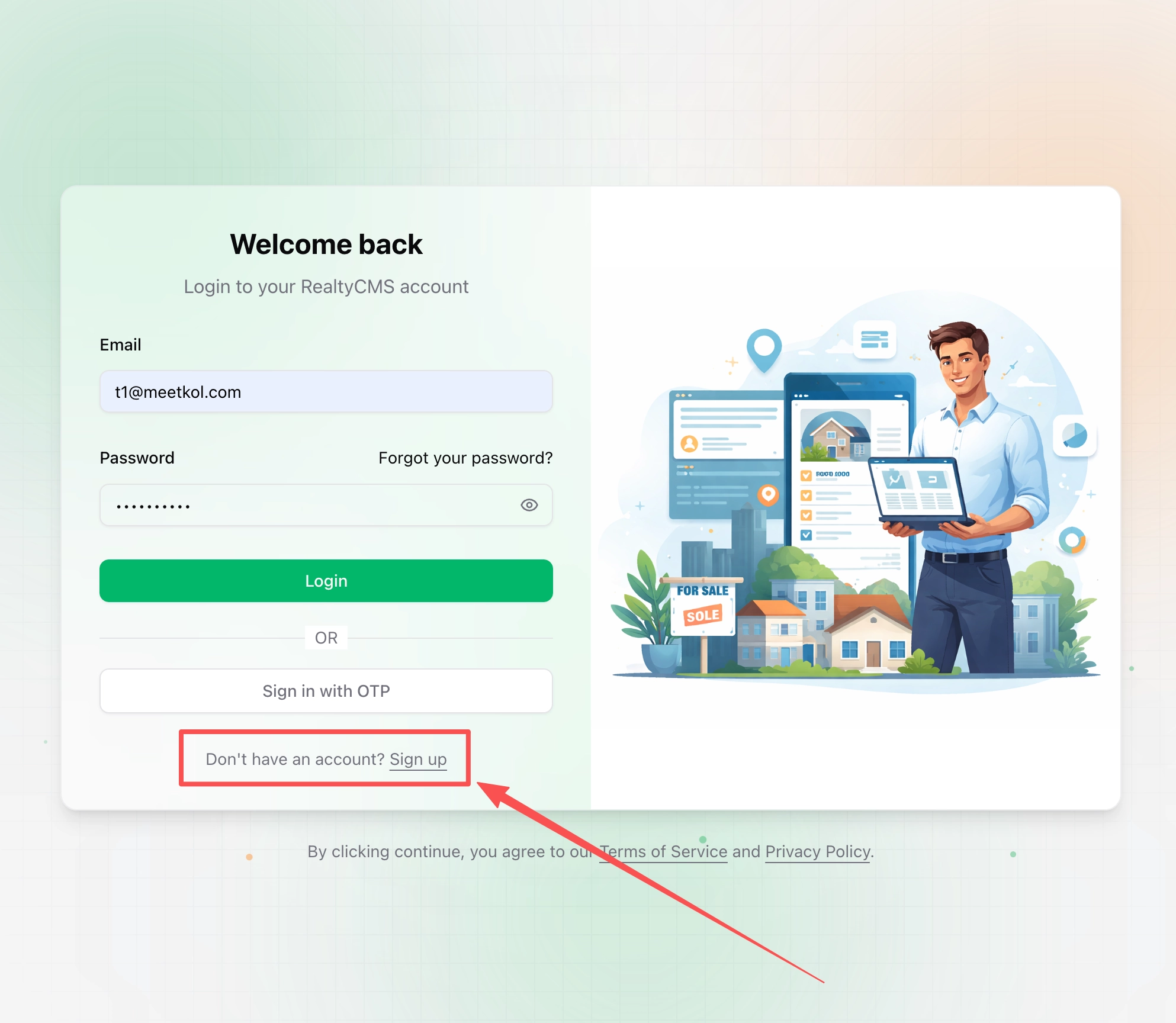
If you have never created or used a RealtyCMS account, please follow these steps to register:
- Click “Sign Up”
2. Enter your email address and password
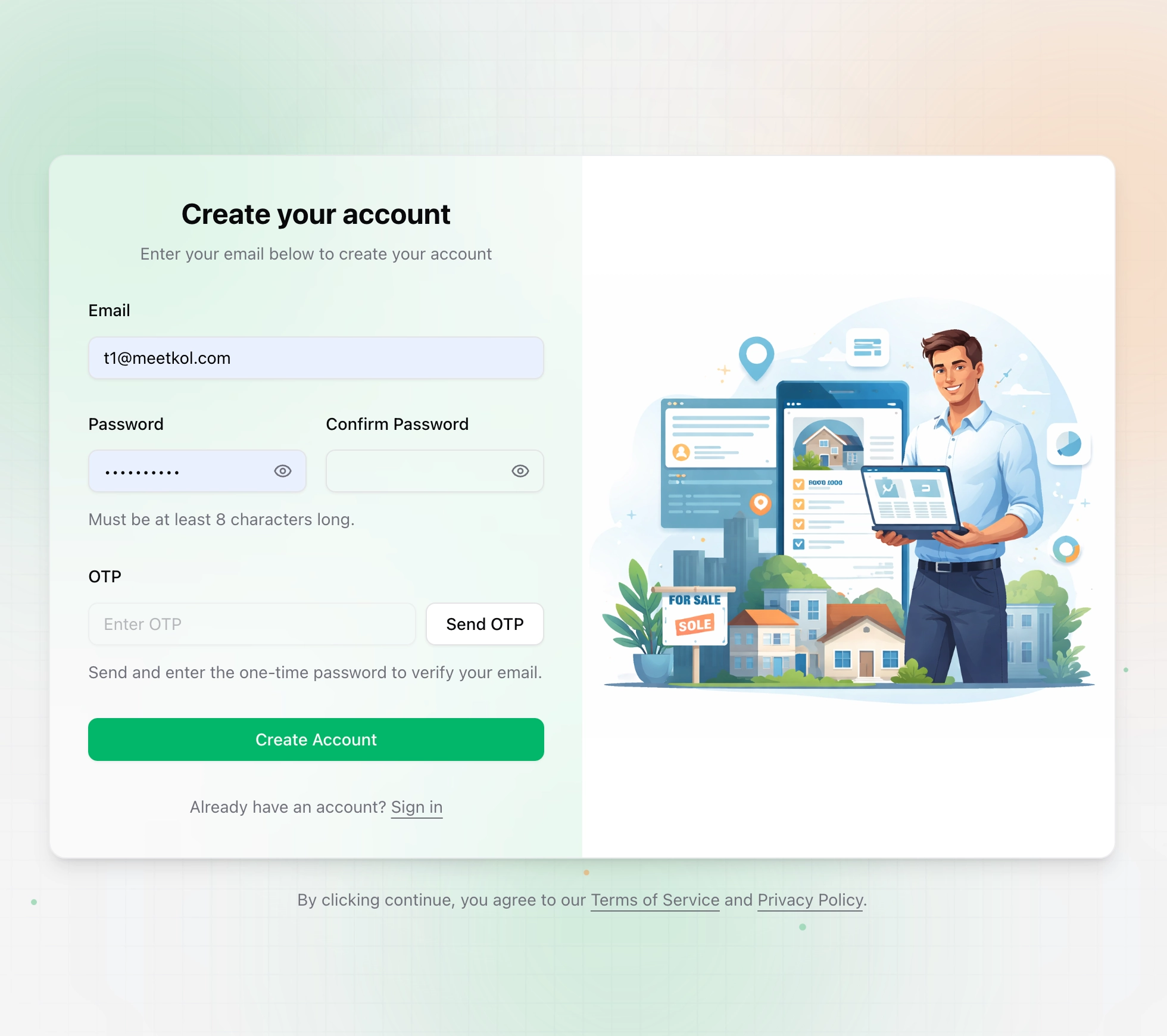
3. Click "Send OTP"
4. Open your email and check for the verification code
5. Follow the on-screen prompts to complete verification
6. Once verification is complete, your account will be successfully created and you can log in to use it
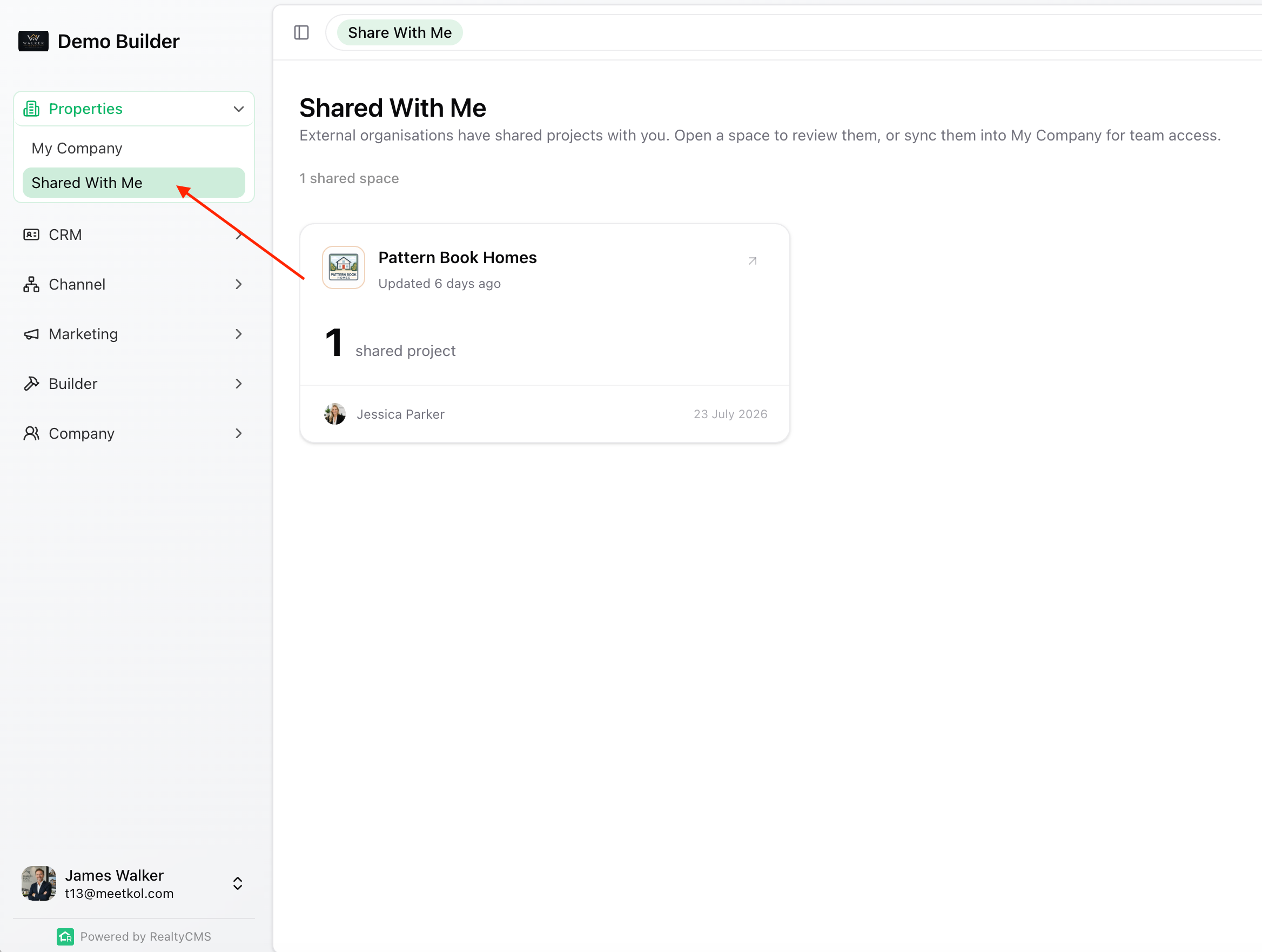
4. View Shared Projects
After logging in, follow these steps to view shared items:
- In the left-hand menu, click " Shared With Me "
- On the page, locate the company card that has been shared with you
- Click the corresponding company card to view all projects that company has shared with you
Friendly Reminder
- Please make sure the email address you entered is correct
- If you haven’t received the verification code yet, please check your spam folder first
- We recommend keeping your login email and password in a safe place for future use