How to Add Designs to Your Builder Profile

Nancy Xiao
Accounts Manager
🚀 What you’re doing here
You are adding your home designs so the system can:
- Match them to developer's lots
- Generate house & land packages
- Create brochures for your sales team
👉 If this step is set up correctly, everything else becomes automatic.
📦 What you will need
Before you start, make sure you have:
- Floor plans ready
- Lot and house dimensions prepared
- Facade images uploaded
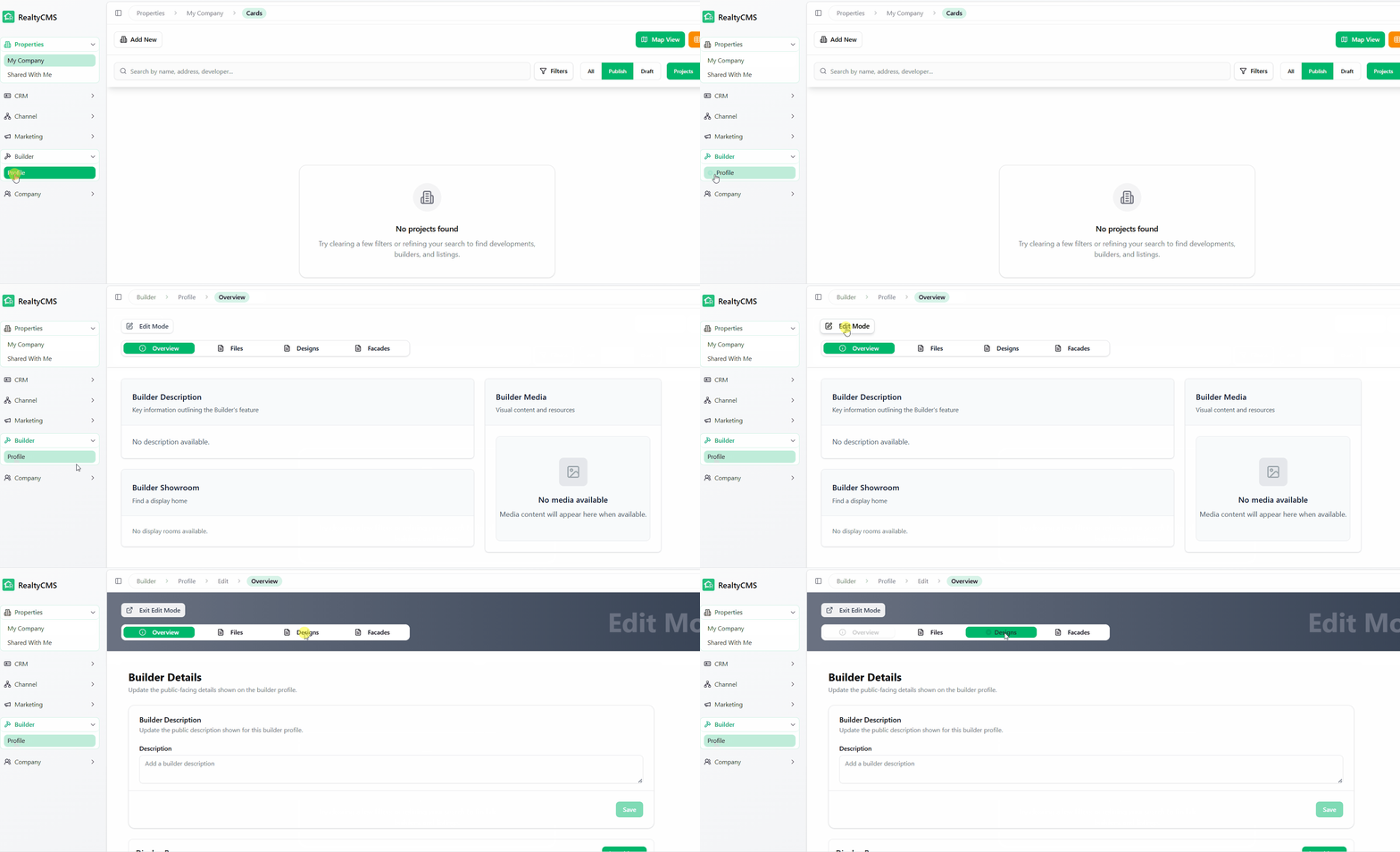
Step 1 — Open the Designs Page
Go to:
Builder → Profile → Edit Mode → Designs
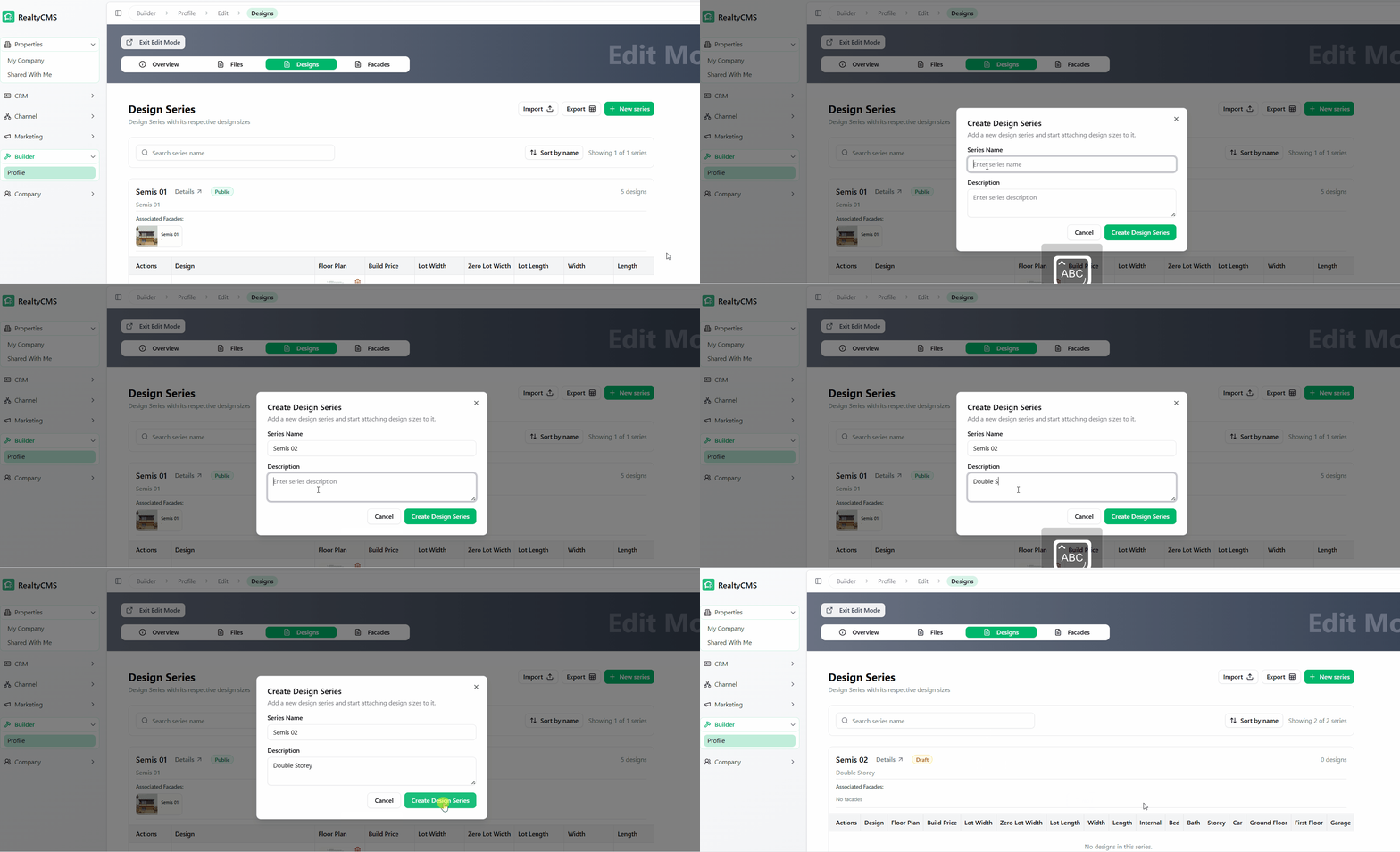
Step 2 - Create a Series
- Click + New Series
- Enter:
- Series Name
- Short Description
- Click Create Design Series
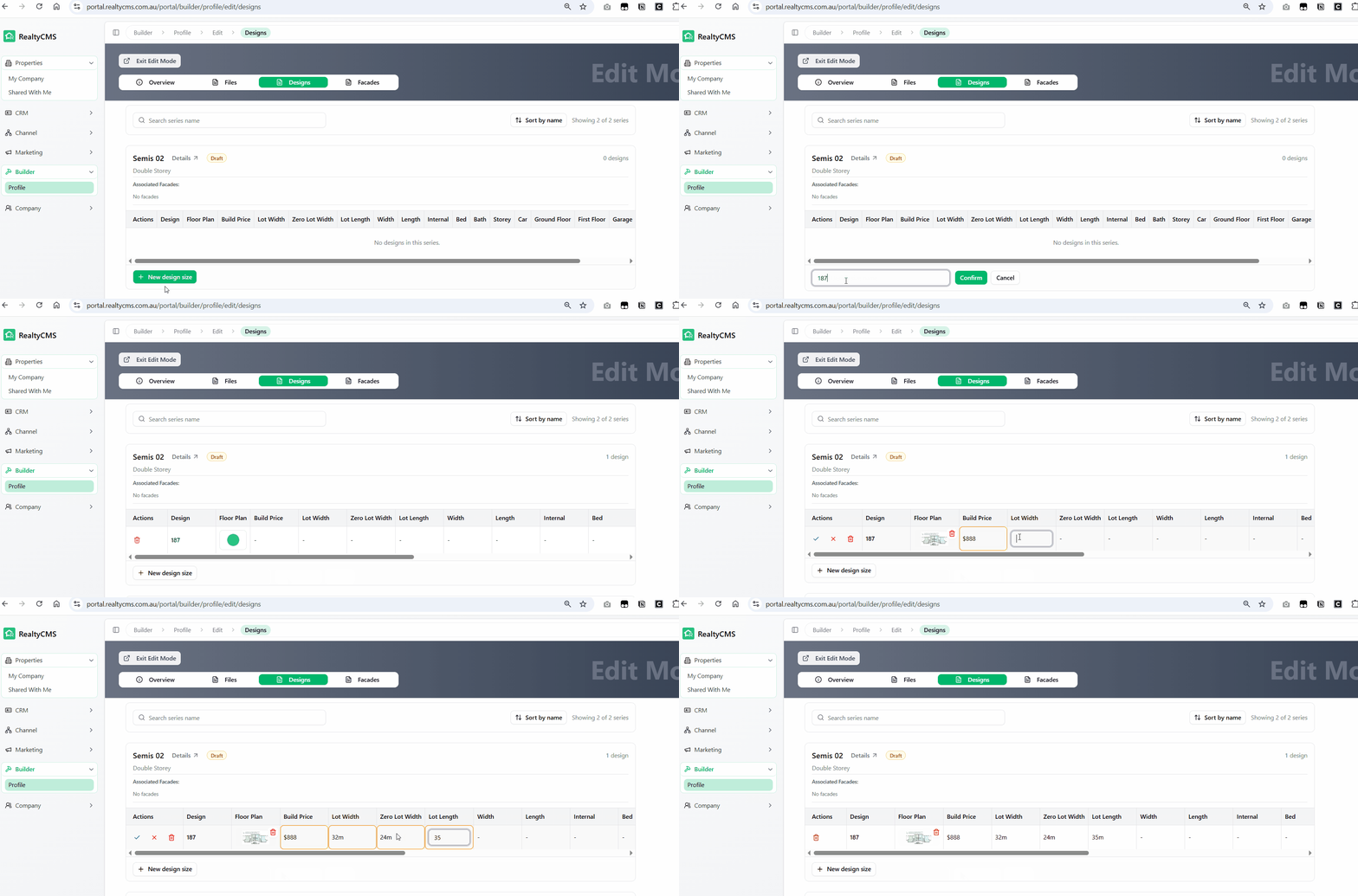
Step 3 - Add a Design
- Click Add New Design Size
- A new design will be created
- Fill in the basic information
- Click the green tick under the Action column to save
Step 4 - Add Facades
After saving the design:
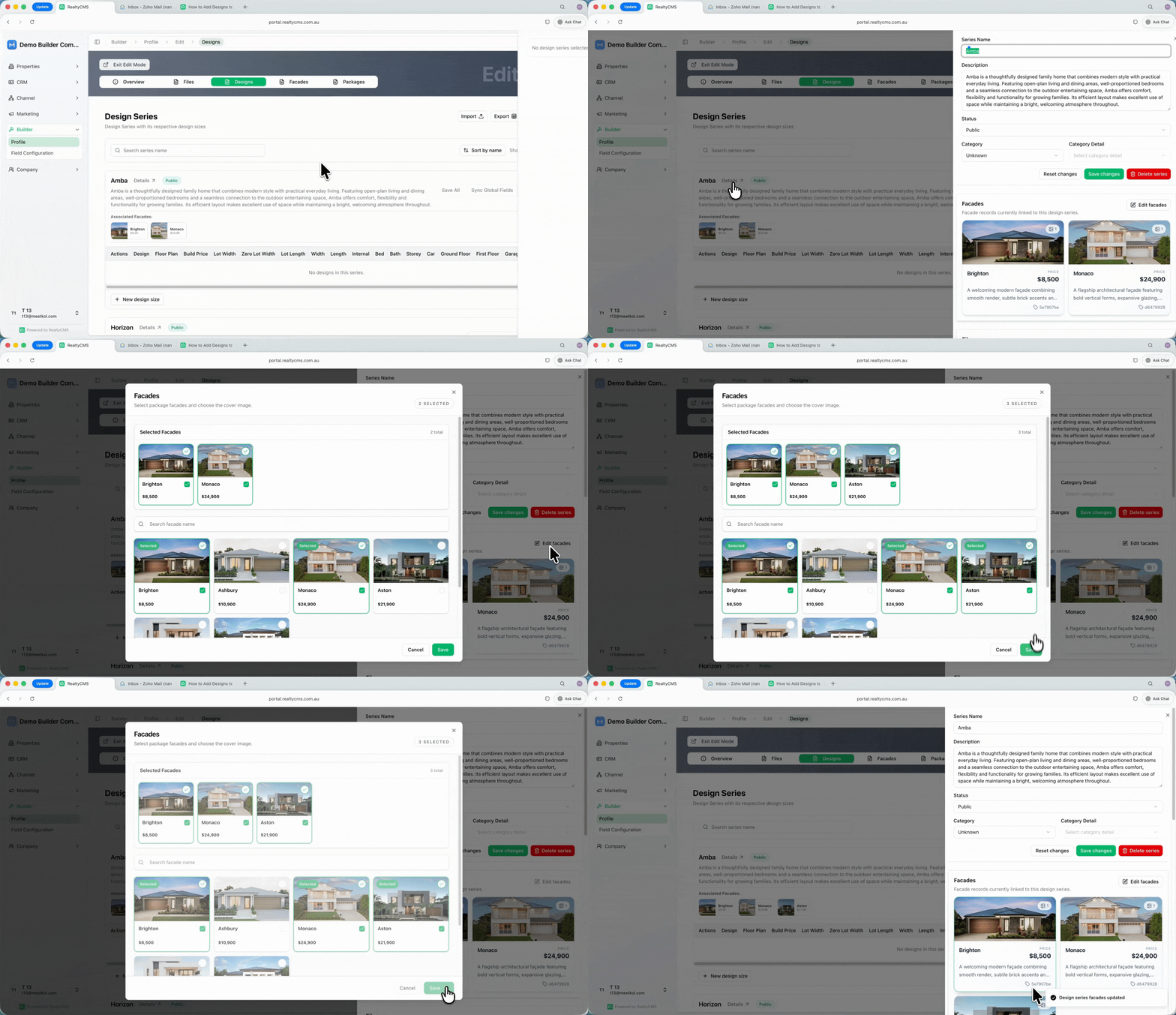
1. Click "Details"
2. Select "Edit Facades"
3. Choose one or more facade images
4. Click "Save".
Step 5 – Choose a Category (Optional)
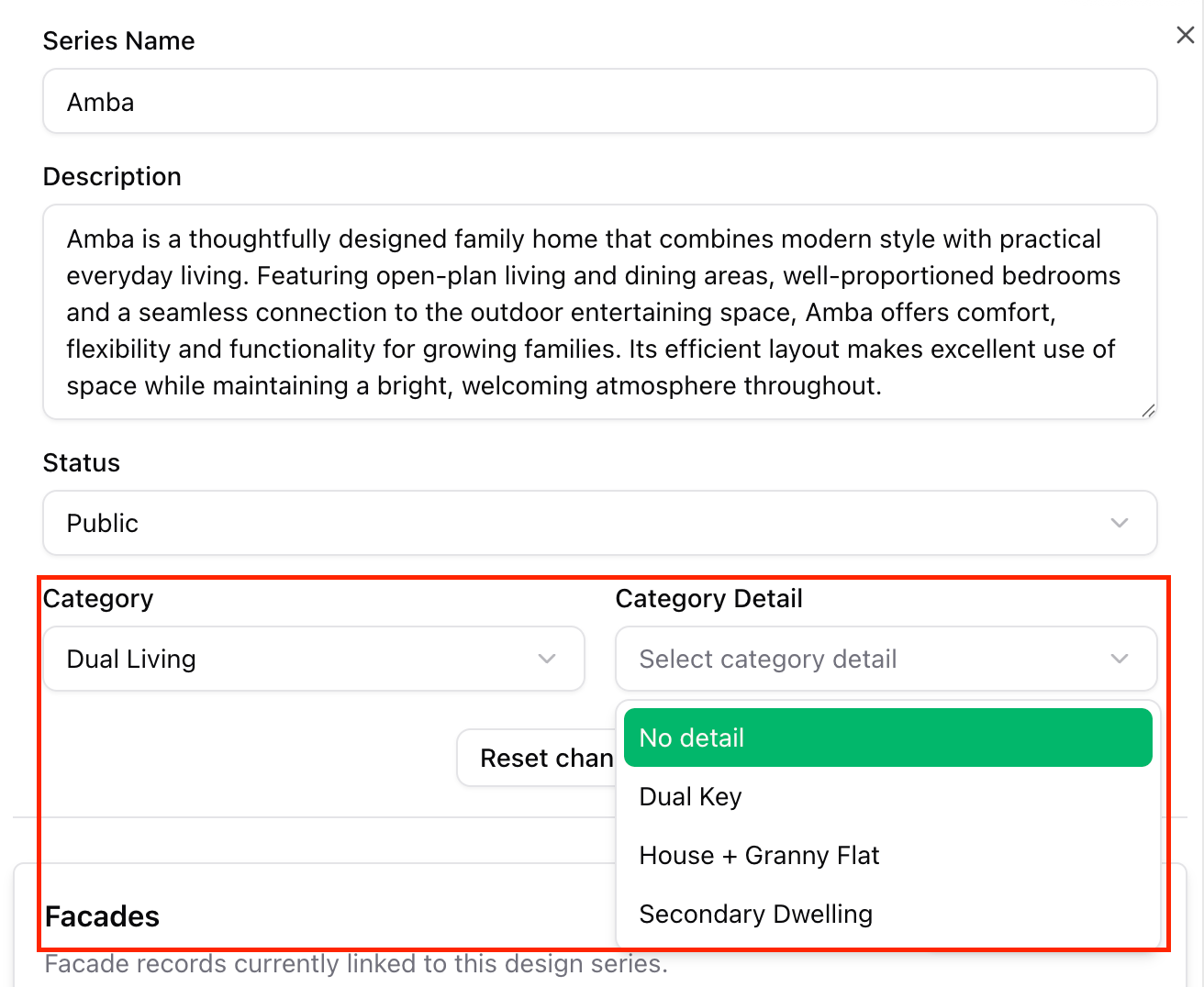
Select the appropriate category for your design. Categories help organise your designs and make them easier to filter when searching or matching designs.
For example: - Single Storey - Double Storey - Narrow Lot - Duplex 👉
Choosing the correct category makes it easier for your sales team to quickly find the right designs.
⚠️ Important: Publish the Design
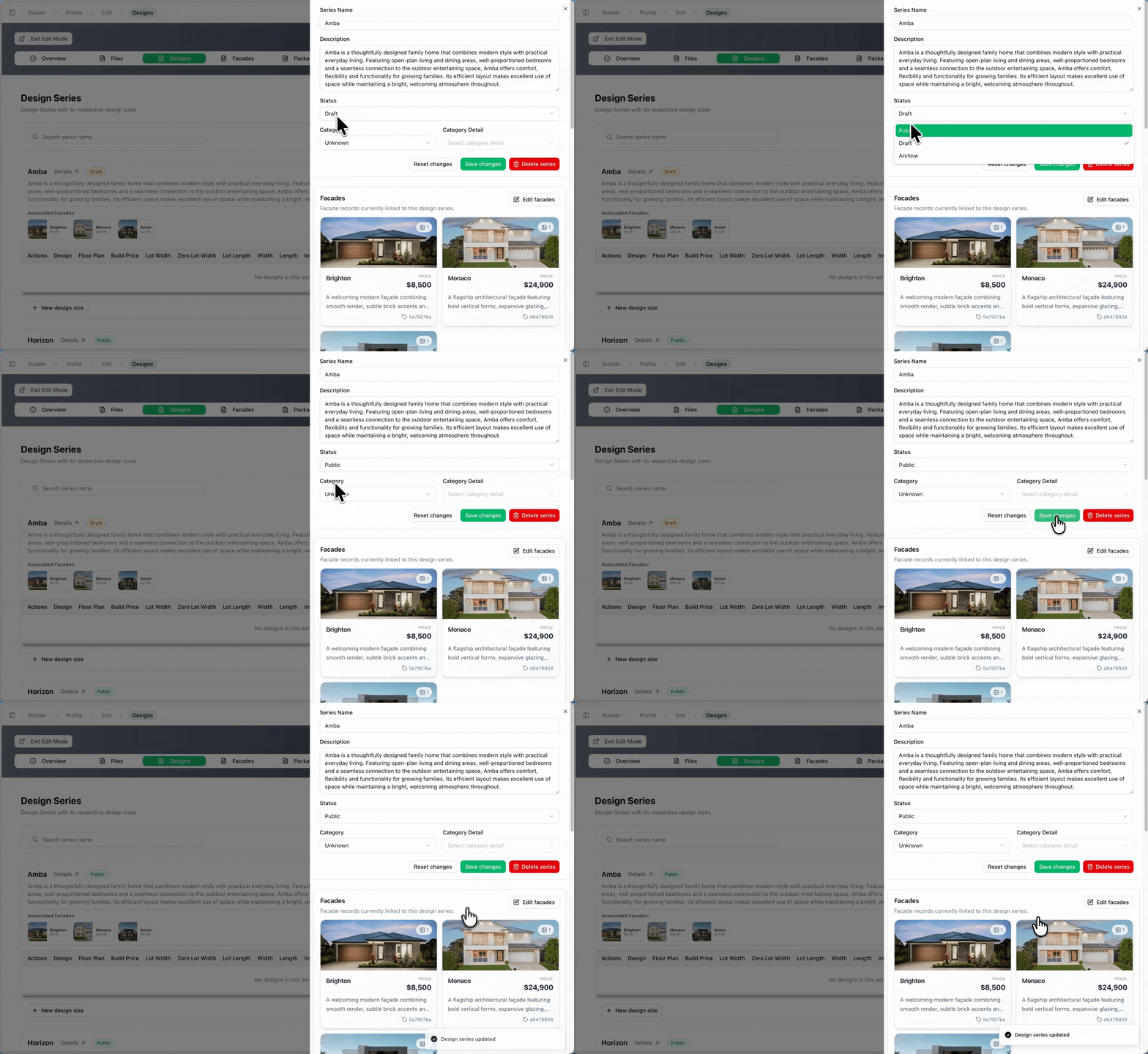
By default, the design is saved as Draft and will not be visible.
To make it public:
- Click Details next to the design series
- Change the status from Draft to Public.
- Click Save
👉 You can also upload additional files or images in the detail page if needed.
🎉 Your designs are now live and ready to be matched with developer lots, generate House & Land packages, and create sales brochures automatically.