
Customise Your CRM with Field Configuration
July 14, 2026
5 mins read

Nancy Xiao
Accounts Manager
Field Configuration lets you add custom fields and organise the information shown in your CRM.
Add a Custom Field
- Go to CRM → Field Configuration.
- Select Contacts, Leads or Lead Sources.
- Click Create Field.
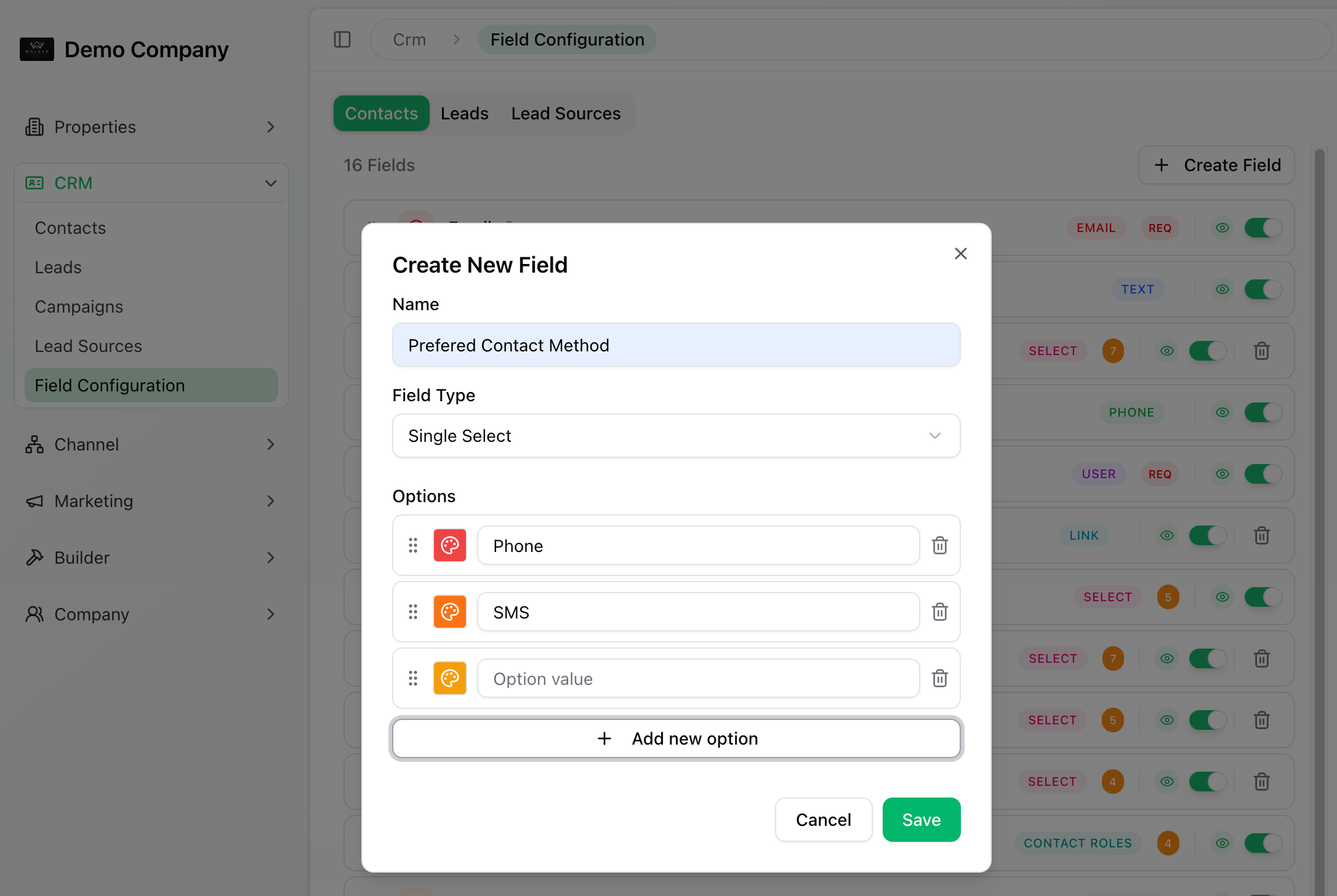
- Enter a field name and choose its type.
- For Single Select, add your dropdown options.
- Click Save.
Example: Create a Prefered Contact Method field using Single Select, with options such as phone, sms etc.
Choose a Field Type
- Text: Short information.
- Text Area: Longer notes or multiple lines.
- Single Select: A dropdown list.
- Link: A website or other URL.
Other available types include Number, Checkbox, Date, Email, Phone and User.
Manage Your Fields
- Click an editable field to update its name or options.
- Drag fields to change their order.
- Use the switch beside a field to show or hide it.
Fields marked REQ are required. Editing options vary between built-in and custom fields.